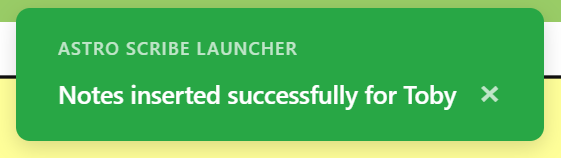
Astro Scribe Launcher
Our browser extension is specifically designed to merge with your current workflow.
It’s ridiculously easy to use - just see the simple steps outlined below
We’re extremely active with our community and love hearing your feedback. Changes can be implemented in days, not weeks or months.
It works on all chromium browsers. This includes Microsoft Edge, Google Chrome, Brave Browser, Opera GX, Vivaldi, and more.
1
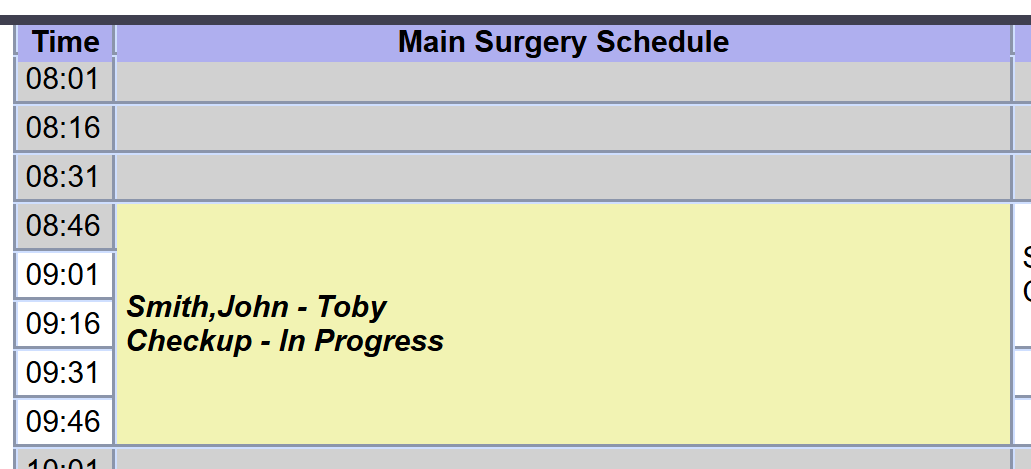
Click on the appointment in the calendar view of the workflow section in OpenVPMS
2
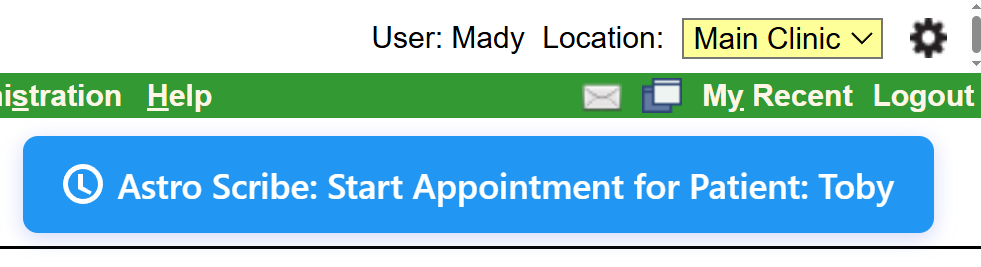
Click on the blue Start Appointment button that appears in the top right corner of the screen
3
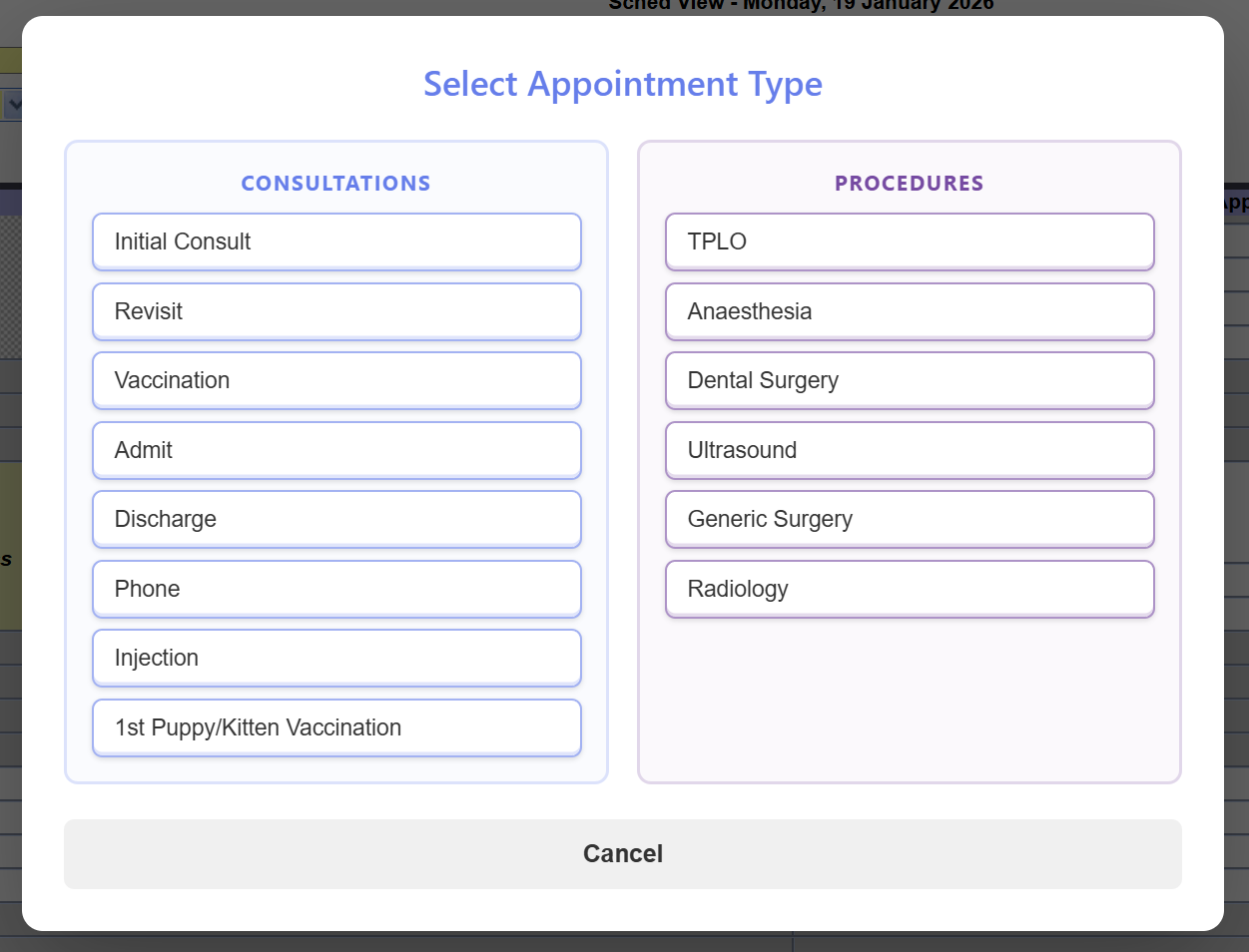
Choose from your appointment types
4
Anytime after the appointment, click either of these buttons in the top right corner to finish recording
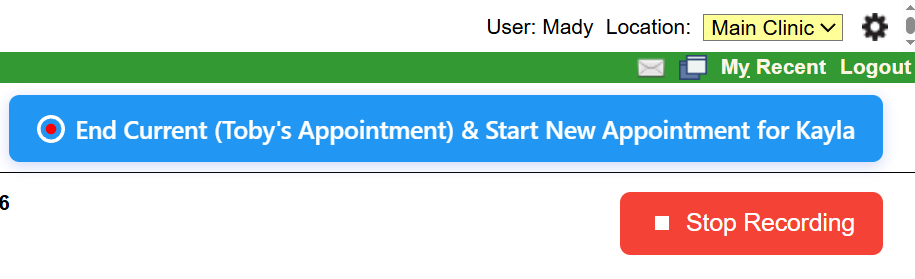
5
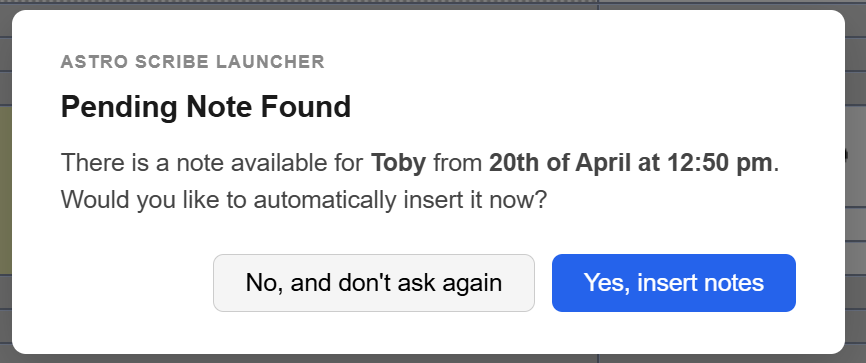
You’ll be notified when a new note is ready - but you can also easily check anytime by clicking on the appointment again (as in step 1).

6
Click on their appointment and then ‘Yes, insert notes’
That’s it!
The notes will be inputted for you so you can immediately review them and save them, then continue with your day!