Download Astro Scribe for Vets
Installation Instructions for MacOS
- Locate the downloaded .dmg file in your Downloads folder (it should download automatically).
- Double-click the .dmg file to mount the disk image.
- Drag the Astro Scribe icon to your Applications folder when the window appears.
- Run Astro Scribe from your Applications.
- Choose "Replace" if you are updating.
Microphone Checker
Test if your microphone is connected and working properly
Speak into your microphone to see the volume level
1. Click "Check Microphone" to start
2. Allow microphone access when prompted
3. Speak into your microphone
4. If you see activity, your microphone is working!
If your device doesn’t have a microphone, you’ll need to buy one.
Here are our current recommendations
Please note that we are not affiliated with these in any way, nor do we receive any commission from their sale.
Tip: Make sure your mic is omnidirectional and a ‘condenser’ type, unless very carefully pointed toward location of speakers. Background noise is extremely unlikely to affect quality of notes - all that matters is the voices are clearly picked up! Quiet audio will cause low transcription quality - try listening to it in Astro Scribe after installing (or in your windows/mac settings) to see if you can hear yourself clearly even when not nearby the mic.
HIGH QUALITY
Strongly recommended as this will offer the best transcription outcomes. We promise the extra initial cost is a worthwhile investment that will save countless hours of your vet’s precious time!
BUDGET FRIENDLY
Where large volumes of microphones might be needed.
However, keep in mind this may degrade your experience and lower the quality of outputted notes:
Lavalier / Lapel Mics like this can also be a great option for dictating surgery cases where no computer is nearby.
(just remember to make sure your computer has the correct port available if its connection is USB-C!)
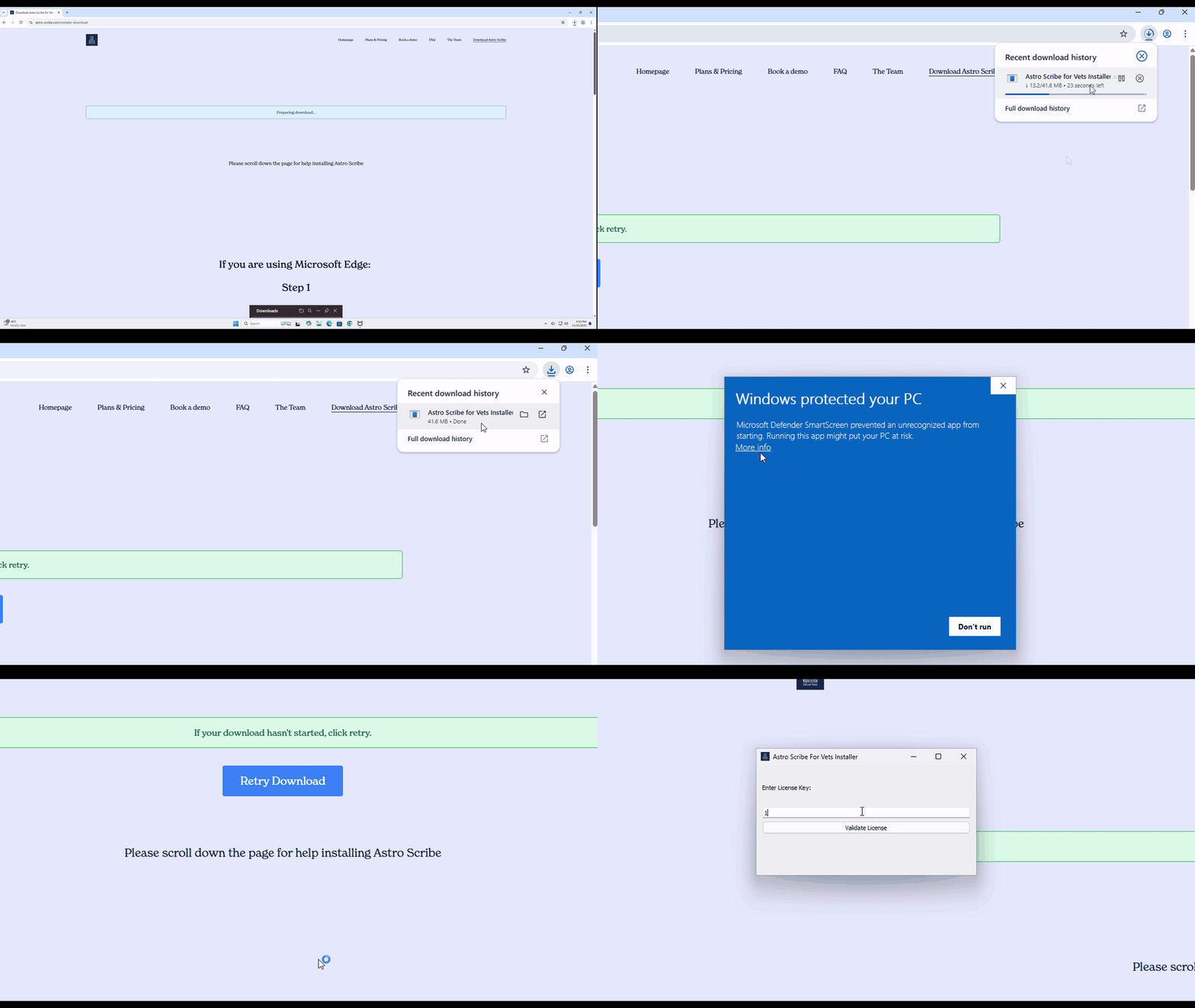
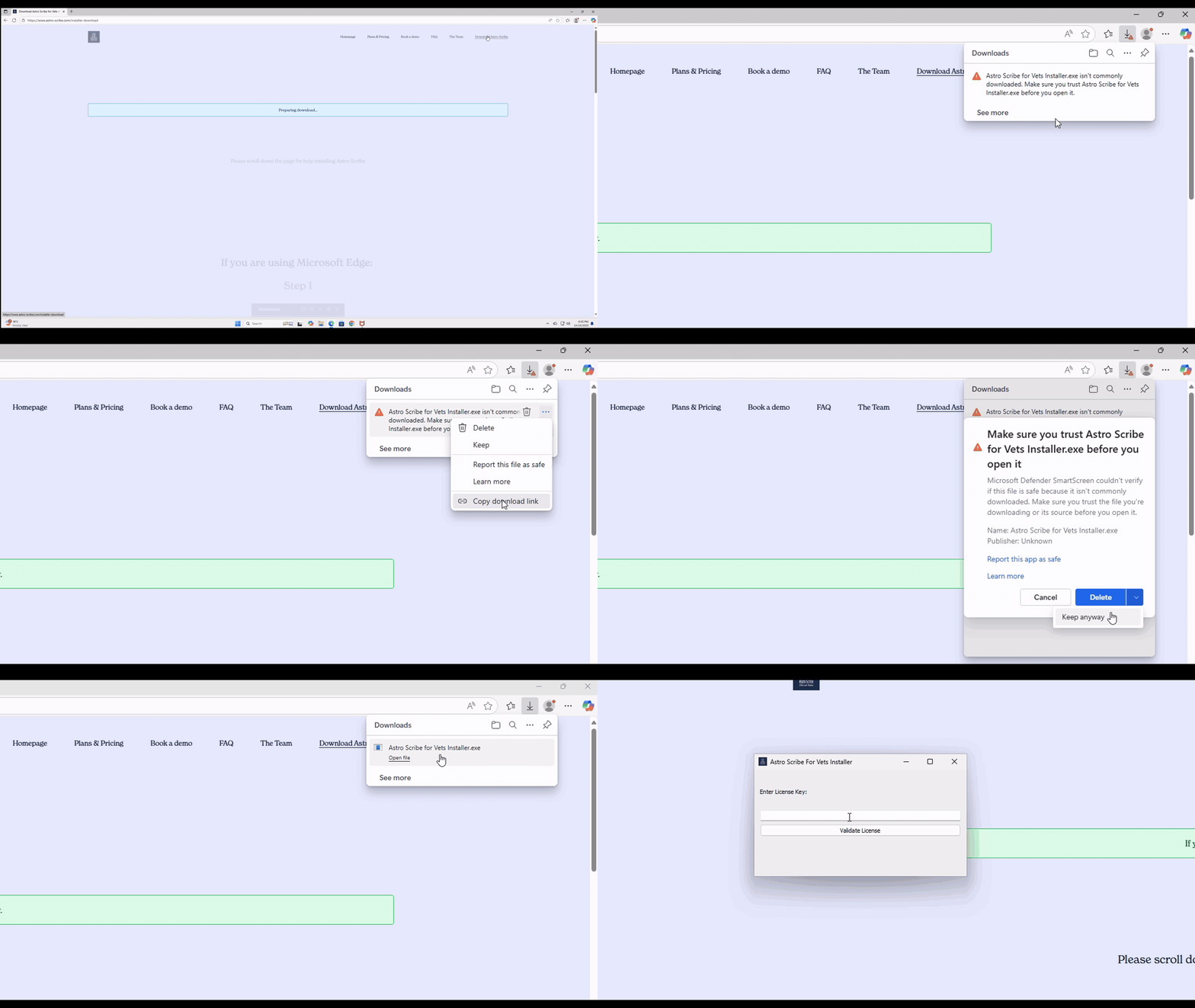
Just copy and paste your license key from your email when prompted, click validate and follow the instructions!